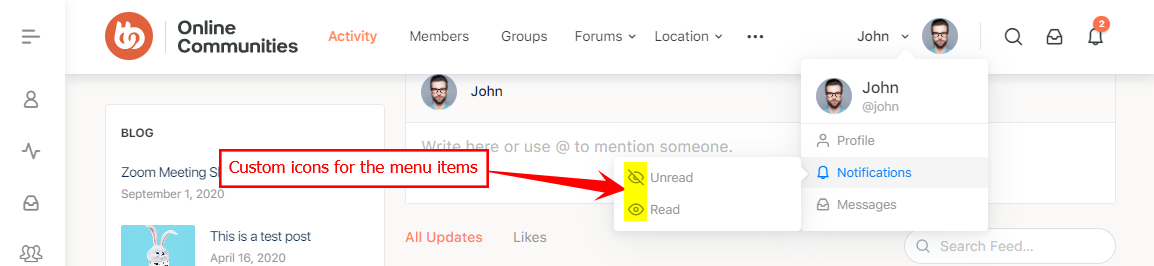
Customizing the Profile Navigation Dropdown
The Profile Navigation Dropdown menu has always been a part of the BuddyBoss Theme. You can add additional menu items and these will be registered in the BuddyBoss Platform as well as the Theme. To customize it:
- Go to WordPress Dashboard > Appearance > Menus.
- Click the Create a new menu link to create a new menu and customize it.
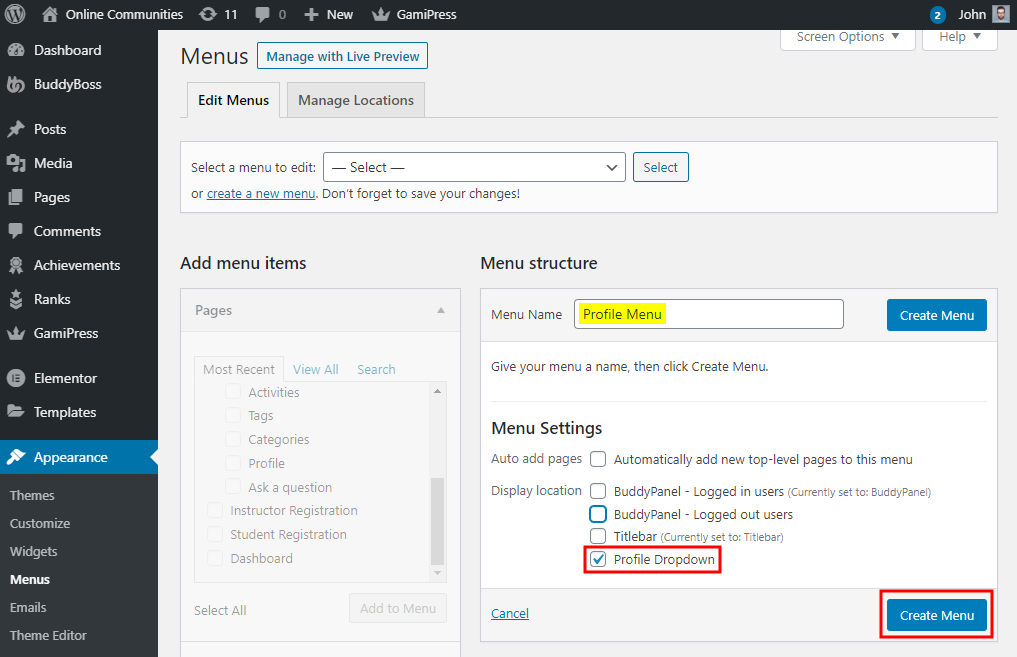
- Add a title for the menu. For example, enter Profile Menu in the Menu Name textbox.
- Select the Profile Dropdown in the Display Location options and then click the Create Menu button.
- In the Add menu items > BuddyBoss meta box, mark the preferred menu items you want to add to the menu bar. For example, mark the Profile, View, Edit, Profile Photo, Cover Photo, etc. menu items to be added to the menu bar and then click the Add to Menu button.
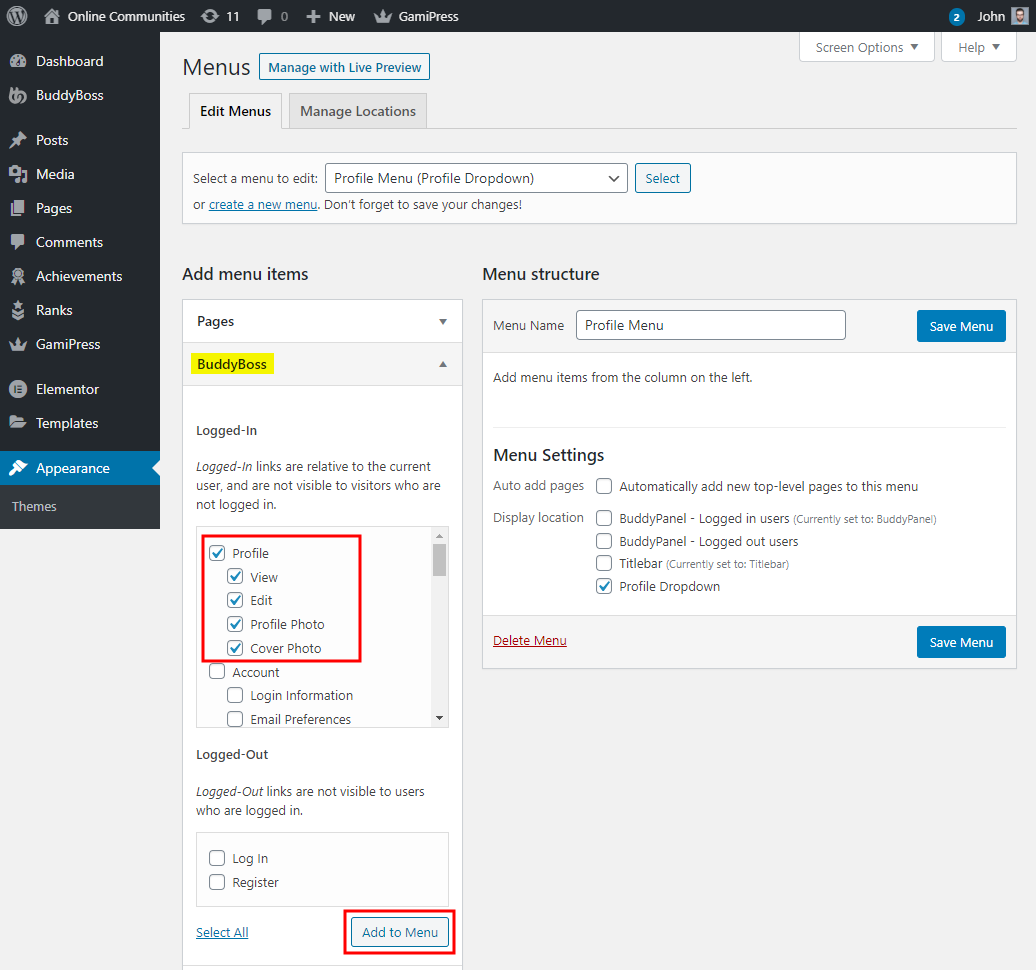
You can mark as many menu items as preferred to be added in the menu.
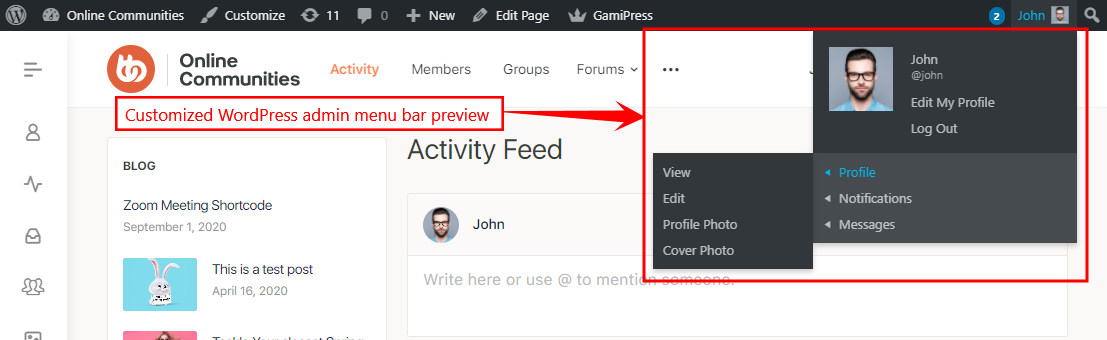
- Drag and drop the menu items to set the hierarchy and sub-menu items and then click the Save Menu button.

Removing the icons for the menu items
You can choose to remove the icons for the profile navigation dropdown menu items. To remove the icons:
- Go to WordPress Dashboard > Appearance > Menus.
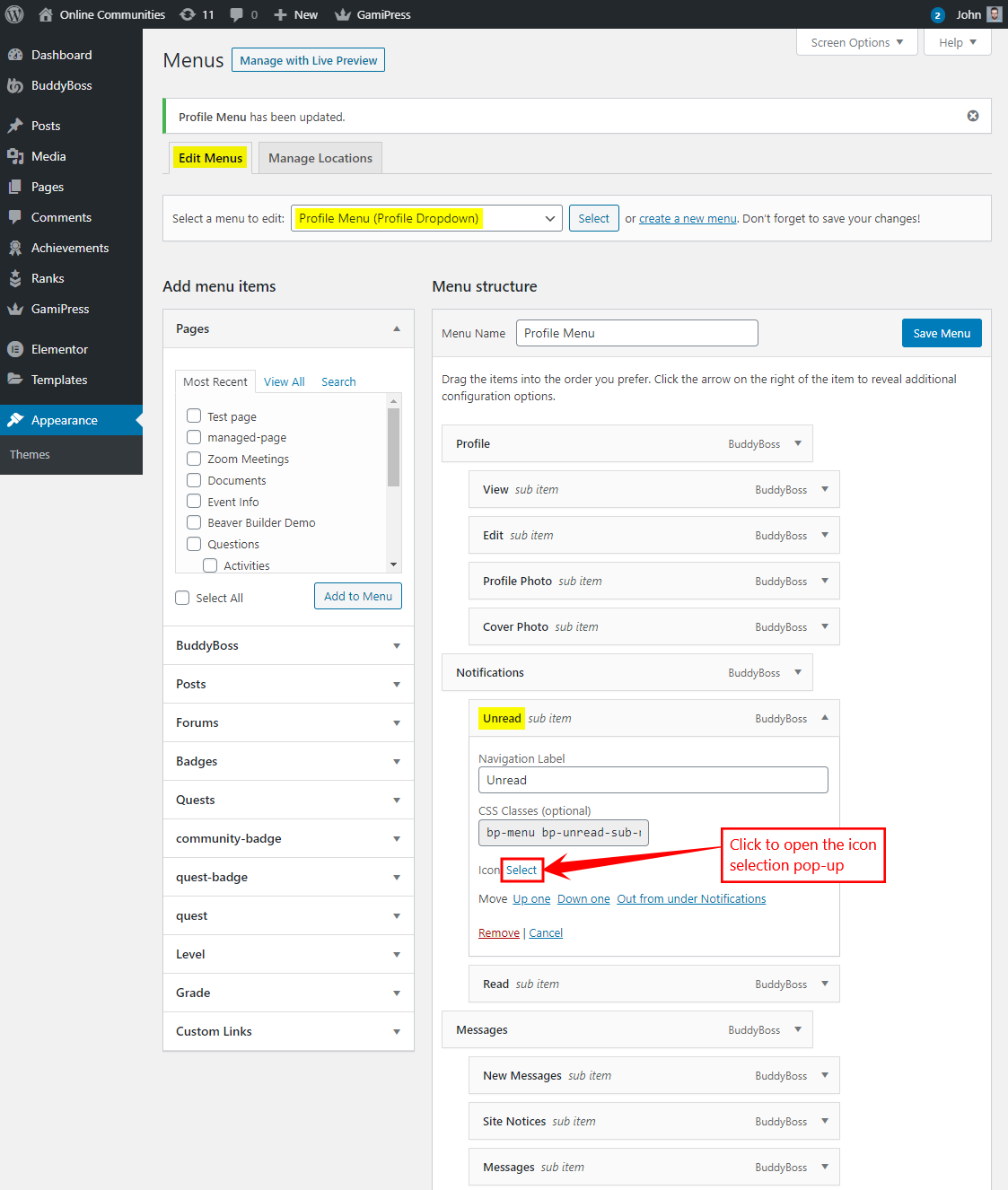
- Click the Edit Menus tab and select the menu you want to edit. For example, select the Profile Menu (Profile Dropdown) menu to edit it.
- Select the preferred menu item and click the Remove link in the Icon option to remove the icon for the menu item.

- Click the Save Menu button.
Changing the icons for the menu items
You can choose to add custom icons for the profile navigation dropdown menu items. To customize the icons:
- Go to WordPress Dashboard > Appearance > Menus.
- Click the Edit Menus tab and select the menu you want to edit. For example, select the Profile Menu (Profile Dropdown) menu to edit it.
- Select the preferred menu item and click the Remove link in the Icon option to remove the existing icon for the menu item. OR
Select the preferred menu item and click the Select link in the Icon option to add a new icon for the menu item.
- Search the preferred icon and then select it for the menu item. Click the Select button.
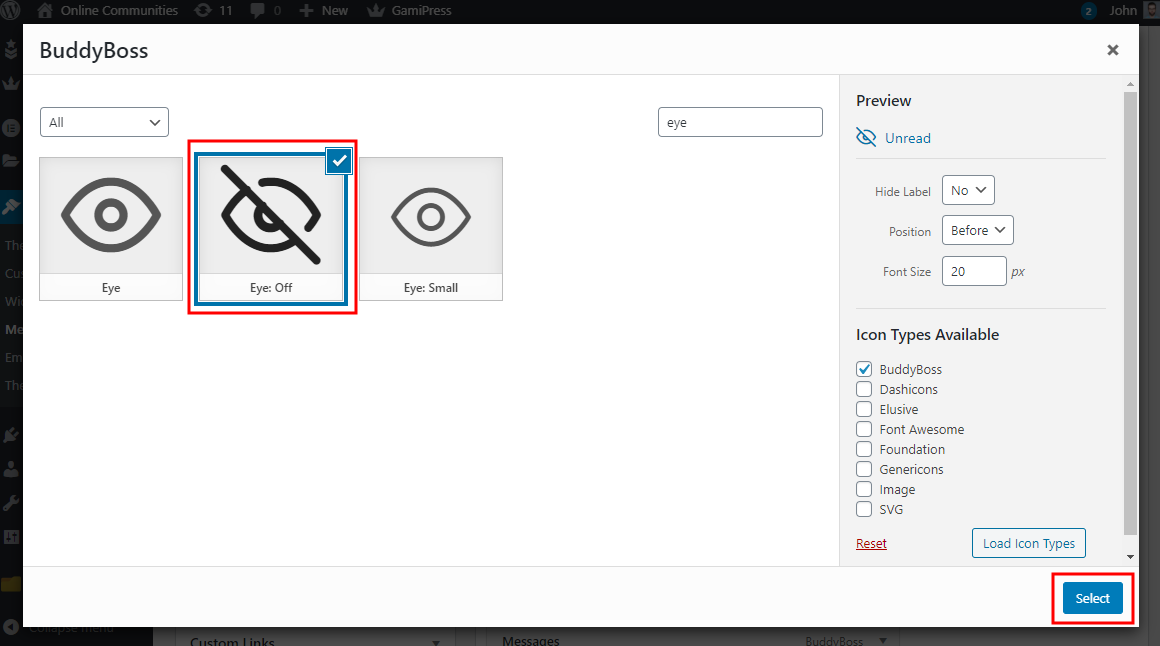
The available icon types are BuddyBoss, Dashicons, Elusive, Font Awesome, Foundation, Genericons, Image, and SVG.
- Click the Save Menu button.